miércoles, 25 de julio de 2012

Biostar TZ77XE4 Review: Dichotomy by Default

Biostar have always been on the radar for motherboard builders, occupying that niche of ‘bang-for-buck’ if your wallet is looking a little empty this month.  In the grand scheme of things they usually do okay, perhaps a little imperfect in the design or not exactly the premium BIOS and software package we have come to expect from top-tier motherboard manufacturers, but today we look at one of their Z77 range, the Biostar TZ77XE4.  Visually in orange, it provides something different, but is that true of the whole package?  Read on to find out more.

The Biostar TZ77XE4 forged an ambivalent relationship with me during testing.  The design is good, with a full set of video outputs, PCIe laid out appropriately, enhanced Realtek ALC898 audio to 110dB SNR, extra SATA ports, and in the box we should get a USB front panel if you are in the USA.  Gaming performance on a single NVIDIA card was similarly worthy of note.
However, performance in other areas was not so great – for whatever reason CPU performance was stagnant compared to other Z77 motherboards, even in our benchmarks that were memory-independent.  The additional software needs to be updated; especially the driver and utility install CD that required manual install of each individual driver and utility. The lack of fan headers could also be cited as a concern.
There were memory issues - none of my testing kits wanted to work at XMP - the board is rated at "DDR3-2400+" and I have seen others running it at such, but my DDR3-2400 and DDR3-2133 kits did not want to play ball.  For all the testing on the Biostar board, I had to run at a lower memory strap (DDR3-2000 mostly) in order to remain stable.  Even a couple of the gaming setups did not work unless I resorted to default SPD.  A word from Biostar states that I received an early model before it was entirely finalized, so users should not experience these issues.  However, I did experience these issues, and it was odd that in some tests, the Biostar bottomed out (3DPM), but in others it ruled the roost (Metro2033 on a single GTX580).
At an MSRP of $170 (currently at Newegg for $150), there are currently a significant number of motherboards from the main manufacturers that cost less and have competitively better packages, such as the Gigabyte Z77X-UD3H, the ASUS P8Z77-M Pro, the ASRock Z77 Extreme4, and the ASRock Z77E-ITX.  That makes the TZ77XE4 a hard sell in all honesty – as a budget-perceived brand, Biostar has to bring something extra to the table.  In the past, this has always been the super-low price, but the TZ77XE4 does not qualify for that.

Biostar have characteristically been black and orange, and we see it here again on their top Z77 model, the TZ77XE4.  The power delivery is covered with large brightly colored heatsinks to remove heat, both connected via a heatpipe.  These heatsinks are set a little away from the Intel designated socket area, though the memory banks are right up against the socket boundary - with only two sticks of memory in the board there will be enough room for most of the beefiest air coolers.
In terms of fan headers, Biostar have unfortunately put much effort in here, with only three to play with - a 4-pin CPU fan header to the top right of the socket, and two 3-pin at the south end of the board.  Anyone requiring headers for more than three fans will have to resort to providing their own fan control.

Along the right hand side, apart from the 24-pin power connector, we have a series of eight SATA ports - two SATA 6 Gbps from the PCH, four SATA 3 Gbps also from the PCH, and another two SATA 6 Gbps from an ASMedia controller.  These are unfortunately not color coded, meaning users will have to double check every time that the SATA cable is going into the port as intended.  Below these we have a two-digit debug display for error reporting which also doubles up as a temperature sensor during normal OS operation.
The chipset heatsink sports the bright orange Biostar color, but is rather small which could lead to it being warm to the touch.  On the south side of the board, we are not exactly bursting with headers - aside from the fans, we have front panel headers, a pair of USB 2.0 headers, and power/reset/clear CMOS buttons.  These final three buttons are all similar and next to each other, so I can just see myself accidentally pressing the wrong one from time to time.  It is also important to note the location of a USB 3.0 header, just above the third full-length PCIe slot.  This is a rather awkward place, and cements its use primarily for rear facing adaptors (as long as there is nothing in the PCI slot beside it).

The PCIe layout is better than previous iterations, featuring an x16 (x8 in dual-GPU), x1, x8, PCI, PCI and Gen 2.0 x4.  This leaves a space between GPUs, and a spare x1, PCI and x4 when dual GPUs are being used.  Note we do not have a molex connector here, suggesting that Biostar are happy with the power delivery when the PCIe slots are in use.
Along the left hand side, you will see a Biostar branded metal shield.  Underneath this is a Realtek ALC898 chip, powering the audio.  Biostar claim that they have improved the shielding and the isolation for the audio.  This results in 110dB SNR; whereas we are normally quoted 108dB SNR or less for the Realtek codec (it states 110dB SNR in the Realtek Whitepaper under ideal conditions).  However, you may note that there are no digital audio outputs.


Qualcomm's Quad-Core Snapdragon S4 (APQ8064/Adreno 320) Performance Preview

If you've been following our SoC related coverage, you'll probably have come across our coverage of Qualcomm's upcoming SoCs in their Mobile Development Platforms (MDPs). It's an interesting way to get both a feeling for the performance of a given platform before things are final, and to see how much OEMs affect the final performance.
Qualcomm flew us out to San Francisco to take a look at its newest part, APQ8064, which is quad core Krait v2 at up to 1.5 GHz with Qualcomm's new Adreno 320 GPU, and no baseband. This is an SoC destined primarily for tablets, although the combination of APQ8064 and MDM9615 will likely also be a common upcoming platform for the highest end phones.

At present, this is the same Krait CPU as what we've seen in MSM8960 in phones like the USA versions of the Galaxy S 3 and HTC One X. Later on, Krait v3 will emerge with higher IPC and shorter critical paths (and clocks up to 1.7 or 2 GHz) and a resulting 10-15% boost in performance. For now however we're looking at 1.5 GHz APQ8064 with a Krait v2 inside and Qualcomm's newest scalar GPU architecture with Adreno 320. We're going to talk more about Adreno 320 closer to devices shipping, when Qualcomm feels comfortable talking architecture.

Dell XPS 15 L521X: A Detailed First Look

Introducing Dell’s XPS 15 L521x: the 2012 Update
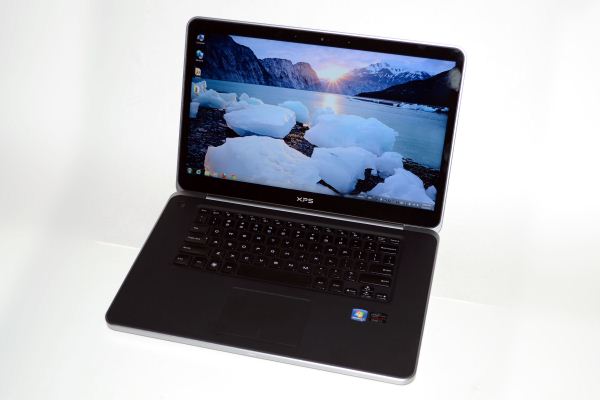
’ve had some good experiences with Dell’s XPS line of laptops over the years, but in virtually every case I’ve had a few minor complaints. The earlier models were large, fast, and too expensive for most users. Then Dell dropped the XPS line for a while and went with the Studio XPS—still generally expensive and there were performance elements that came up short (e.g. the Studio XPS 16 had an awesome RGBLED backlit display, but it tended to run a bit toasty and the hardware wasn’t as fast as previous XPS offerings). With the relaunch of the XPS line in late 2010, the original XPS 15 delivered a great display and a well-balanced set of components that was enough to earn our Gold Editor’s Choice award, but the chassis was understandably a bit too bulbous for some tastes. The XPS 15 Sandy Bridge update improved the CPU and GPU options, but six months after the first XPS 15 I was even less enamored with the chassis. Next up in the list of progression was the XPS 15z, which improved some areas but regressed in others. It had a thinner, sleeker looking chassis, but dropped support for quad-core processors, downgraded the GPU slightly, had some thermal concerns, and perhaps most worrisome was the build quality. I posted an update a few months after the review that summed things up nicely: “I can't stress enough how it feels like Dell cut a few corners and the result is a laptop that doesn't hold up as well as I'd like over the long haul…. When the inevitable Ivy Bridge update of the 15z comes out, you can bet I'm going to pound on it a little more.” And that brings us to the new XPS 15, which has a completely redesigned chassis. Did Dell listen to my complaints about the 15z build quality? You better believe it!
Superficially, the new XPS 15 looks quite similar to the 15z, at least in pictures. Meet one in person, however, and the changes are immediately noticeable. Many suggested that the XPS 15z was trying to clone Apple’s MacBook Pro, but that’s somewhat disingenuous—unless you consider any laptop that aims to be slimmer and silver to be a MBP clone, I suppose. I would however suggest that it did take more than a couple design cues from Cupertino, including a strikingly similar keyboard layout. The newest model keeps the 15z keyboard layout (which is still a step back from the XPS 15 L501x/L502x in my opinion), but ditches the silver palm rest and keyboard area for a matte black surface with a soft-touch coating. The touchpad also gets a clickable MBP-like interface that we’ve seen on just about every Ultrabook along with many newer laptops. Personally, I still prefer touchpads with separate non-integrated buttons, so this is another step back.

What’s not a step back is the chassis itself, which is now the most MacBook Pro-like chassis I’ve encountered in a non-Apple product. It uses machined aluminum for the main chassis and frame, similar to Apple’s unibody chassis, and it’s thicker and far more rigid than any previous Dell XPS laptop. Even the display cover gets a thick aluminum backing, so there’s really no twisting or flexing to speak of. The palm rest on the other hand isn’t machined aluminum but instead uses magnesium with a soft-touch coating. If you thought the XPS 15z copied a lot of Apple’s design, the XPS 15 will only cement that impression, but really I don’t care: if a competing product is better, then stealing a few ideas isn’t going to hurt my review of it. [Insert obligatory Steve Jobs quote about great artists stealing….]
Here’s the spec sheet for the new XPS 15, and I’ve included the specs of the last-gen MacBook Pro 15 as a reference point. Note that unlike the MacBook Pro Retina, Dell continues to include a DVDRW/Blu-ray optical drive with their XPS 15.

Gigabyte GA-Z77X-UD5H Review: Functionality meets Competitive Pricing

The motherboard scene contains around fifty shades of grey – whatever size, whatever feature set, if a user cannot get what they exactly want, something similar should be available.  The only questions that follow are: does it work properly, and is it worth the money?  Today we are looking at the Gigabyte GA-Z77X-UD5H (or the Z77X-UD5H, depending on location), a motherboard with dual NIC, up to ten USB 3.0 ports, mSATA, three-way GPU without a $30 PCIe enhancing chip, TPM, extra SATA 6 Gbps and the full array of video outputs for only $180.
Gigabyte GA-Z77X-UD5H Overview
Ever since I started reviewing, I have been critical of Gigabyte – they seem eager to put out a product that works, and not willing to take much time to invest in their products or users for the sake of improving the relationship.  It seems a very sales-driven company overall, thus it is lucky that it sells a good number of motherboards, and is a top-tier motherboard manufacturer with hands in many markets.
Competition, as always, comes from all sides – users are perhaps moving away from the standard desktop scene into mobile devices, or other motherboard manufacturers want a slice of Gigabyte’s large pie.  The motherboard business, while growing, is not growing as fast as it once was – in order to gain market share it has to be taken from someone else.  This has caused companies like Gigabyte to knuckle down hard and find ways to remain competitive.
One Gigabyte tactic (of late) is to take its motherboard lineup and attempt to push it down one price point.  This is either through manufacturing costs, bundling, special deals and presumably a myriad of other ways internally to achieve this.  We saw this on the X79-UD3 especially.  The downside of scrimping to meet a lower price point is often the absence of effort, particularly when there is a lack of substance to a motherboard bundle – it needs to feel that the board is good value, rather than just be good value.
Here steps in the Z77X-UD5H.  On paper it has a range of included extras – dual NIC, extra SATA 6 Gbps ports, three-way PCIe 3.0 GPU gaming without a $30 expansion chip,  an mSATA port, TPM, up to ten USB 3.0 ports and a full range of video outputs, all in a $180 (MSRP $200) bundle.  Competition at this price point comes from the ASUS P8Z77-V LE Plus, the ASRock Z77 Extreme6, the MSI Z77A-GD65, Gigabyte’s own G1 Sniper M3, and a for a little more, the ASUS P8Z77-I Deluxe and Maximus V Gene.  All these boards fall in the $170-$200 window on Newegg at time of writing.
Performance wise, the Z77X-UD5H gets a high grade across the board.  It benefits from having MultiCore Enhancement, giving an extra 200 MHz when fully loaded compared in Intel Turbo specifications – this helps the Gigabyte push the board in CPU related benchmarks.  IO benchmarks are mid range, reaching the upper echelons on occasion.  The single flaw in Gigabyte’s rather nice deck of cards is the DPC Latency test, which suffers initially at the hands of the EasyTune6 monitoring software (3000 microseconds+), but when this is disabled it hits a value double that of any other Z77 board.  Judging by other manufacturers who have had this issue, a simple BIOS update should fix it.
The Gigabyte BIOS has slowly grown on me since its inception in graphical form.  When I first covered the BIOS, it was slow and unresponsive and was not nice to play with.  On the Z77X-UD5H though, it is smooth sailing with almost all the options easy to hand.  The software supplied with the motherboard, in the form of EasyTune6 and 3D Power, really needs a swift kick in the rear to bring it into the 21st century.  In addition, users who want in-depth fan controls will need their own solution.
The Gigabyte Z77X-UD5H comes with a three-year warranty in North America, and for an extra $30 comes with an included WiFi card and antenna in the form of the Z77X-UD5H-WB WiFi.  Overall, the Z77X-UD5H lights up the $180 price point like a beacon and is placed well for significant sales.
Visual Inspection
Gigabyte have three different aesthetic styles for the range of motherboards they produce – green and black for their gaming series, blue and black for their channel boards, and blue/white for their budget SKUs.  The Z77X-UD5H is placed firmly in the midrange of Z77, resulting in a blue and black visual:
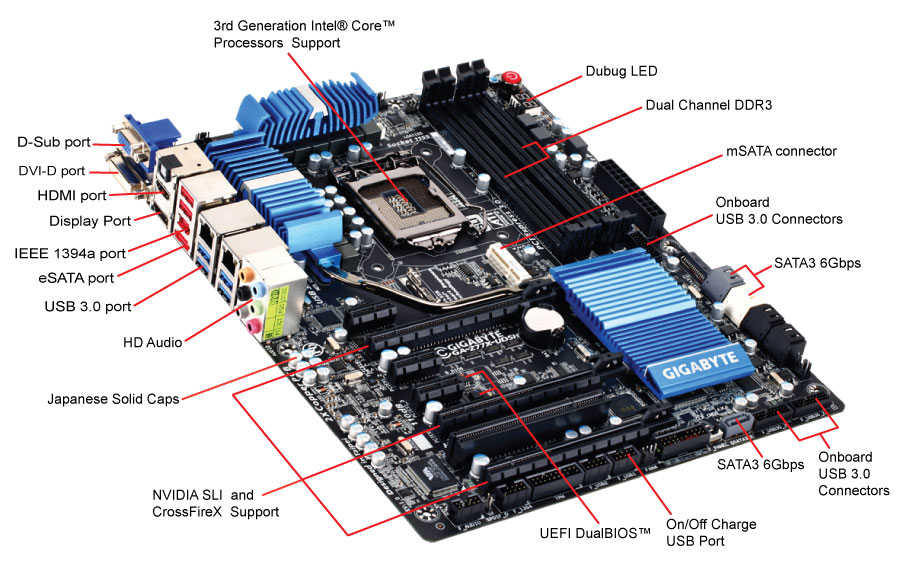
The power delivery sections are covered by some beefy heatsinks, both of them connected via a heatpipe down to the chipset heatsink, which comes with fins to aid cooling.  The socket itself is sized to Intel specifications, with power delivery coming close on two sides, mSATA on the south side and memory on the right.  Users of large air coolers may struggle to deal with the heatsinks, as they measure approximately 32mm high from the PCB.  There are three fan headers found around the socket area – one 4-pin to the top right of the socket, one 4-pin to the top left near the power connector, and another 4-pin the other side of the memory near the power button.


Down the right hand side, we have a trio of power/reset/clear CMOS buttons.  The latter two are of similar size and shape, leading to perhaps a few four-letter profanities by enthusiasts using this board to overclock should they hit the wrong button, but the power button is big, red, and thus easy to hit first time.  Under these is a two-digit debug LED, useful for troubleshooting POST issues, and a 4-pin fan header.
Gigabyte motherboards typically have a very busy motherboard between the right hand edge and the memory slots, and this is true here also.  Continuing down the right hand side, we have the 24-pin ATX power connector, a USB 3.0 header (VIA VL810), and a SATA power connector (to give the PCIe extra juice).  Typically, the PCIe extra power header is found above the PCIe, but I prefer it here as it makes cabling easier.  Underneath these are eight of the SATA ports – four SATA 3 Gbps in black from the chipset, two SATA 6 Gbps in white also from the chipset, and two SATA 6 Gbps in grey from a Marvell 88SE9172 controller.  The other SATA 6 Gbps ports on the motherboard are split between the single grey SATA port on the bottom, and the eSATA port on the IO panel.


Along the bottom of the board are the headers – from right to left we have a pair of USB 3.0 headers (good for four more USB 3.0 ports from VIA controllers), the SATA 6Gbps port, a BIOS switch (for the dual BIOS system), the front panel connectors, two USB 2.0 headers, an IEEE1394 header, and a Trusted Platform header.  This TPM is here as Gigabyte insists that a number of their customers request it, especially in business scenarios.
The PCIe layout is designed to work around the board design – due to the mSATA port between the socket and PCIe (on other boards we see the mSATA near the chipset, or between the PCIe slots), we start with a single PCIe x1.  The rest of the PCIe are an x16 (x8 in multi-GPU), x1, x1, x8 (x4 in tri-GPU), PCI, x4.  The Gigabyte Z77X-UD5H is different to all the other Z77 boards we have tested so far due to the PCIe layout for multi-GPU setups:
With the Ivy Bridge platform and Z77 chipset, we have the following possibilities for separation of the sixteen PCIe 3.0 lanes from the CPU:
x16 or
x8/x8 or
x8/x4/x4
We see the first two options on most of the motherboards on sale today.  This is combined usually with four lanes from the chipset of the PCIe 2.0 variety.  Manufacturers can also add a PLX 8747 chip (nominally another $30-$40 increase on the cost of the board) to increase the PCIe 3.0 lanes to 32.
What makes the Gigabyte Z77X-UD5H different is that it takes the third option – x8/x4/x4 on the PCIe slots, all PCIe 3.0.  In dual mode, the system will act x8/x8, and in single mode we get one x16.  As our previous reviews use the x8/x8 method with an additional four lanes from the chipset for the third GPU, our gaming tests show the difference between these two setups.  We also have some PLX 8747 boards coming up for review shortly to see how they affect the rankings.